Server Dataset API
Provider
dec.provider.data.set
Register a New Dataset Type
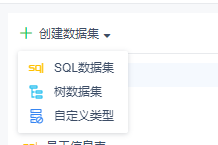
Adding a new type means providing an extra option when editing or creating a dataset. The operation targets the edit page; no preview page implementation is required.
Method
registerDataSetType(config)
Parameters
config: Object, required. Step object. Contains text (display text), value (identifier), and cardType (shortcut of the component for this dataset type).
Example
// Register a new type
BI.config("dec.provider.data.set", function (provider) {
    provider.registerDataSetType({
        value: "plugin",
        text: "Custom Type",
        cardType: "dec.data.set.type.plugin"
    });
});
Page implementation:
// Page implementation
!(function () {
    var Plugin = BI.inherit(BI.Widget, {

        _store: function () {
            return BI.Models.getModel("dec.model.data.set.type.plugin", this.options);
        },

        render: function () {
            var self = this, o = this.options;
            return {};
        },

        /**
         * Required.
         * Only the value specific to this type is needed; datasetName and datasetType are not required.
         * The returned value will be used as the value of datasetData.
         * @returns {{}}
         */
        getValue: function () {
            return {};
        },

        /**
         * Optional validation method.
         * @returns {boolean}
         */
        validation: function () {
            return true;
        }
    });
    BI.shortcut("dec.data.set.type.plugin", Plugin);
})();
Plugin model:
// Plugin model
!(function () {
    var Model = BI.inherit(Fix.Model, {

        // Get the dataset name via dataSetName; modify ableSave to control whether the Save button in the top-right is enabled
        context: ["dataSetName", "ableSave"],

        state: function () {
            return {};
        },

        computed: {},

        actions: {}
    });
    BI.model("dec.model.data.set.type.plugin", Model);
})();
If a preview feature is needed, use the built-in component dec.data.set.preview, which provides preview, preview success, preview failure, and cancel preview functionality. Pass previewAble via context to dynamically control whether preview is available, and previewedDataSet to update the previewed dataset.
Result
Common Methods
Check whether a specific dataset type is supported
BI.Services.getService("dec.service.data.set").isSupportDataSet(type);Get the default value for a parameter of a specific type
BI.Services.getService("dec.service.data.set").getDefaultValueByType(type);Refresh data parameters (e.g., parameters in an SQL statement)
// Pass the current dataset request to retrieve parameters, then call getParameters to merge old and new parameters
Dec.Utils.getDataSetParameters(dataSet, function (res) {
    newParameters = BI.Services.getService("dec.service.data.set").getParameters(res.data, oldParameters);
});
Create input fields for parameters of different types
BI.Services.getService("dec.service.data.set").createParameterValueItem(param, cb);This method accepts two arguments:
paramis the current parameter info{type: "param type", value: "param value", name: "param name"}, andcbis a callback triggered when the input value changes.Show the user parameter input dialog
BI.Services.getService("dec.service.data.set").showParametersPopover(parameters, cb)This method accepts two arguments:
parametersis the parameter list (each parameter must havenameandvalue), andcbis a callback triggered when the user clicks OK.