Plugin Installation Failure
When a plugin fails to load in the designer, follow the steps below to troubleshoot.
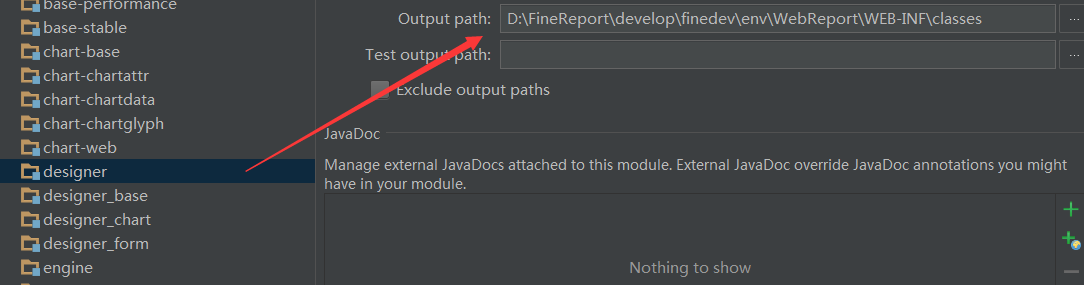
1. Check the Plugin Compilation Output Path
Make sure the plugin project compiled successfully and that its class output path matches the designer project's class output directory. A ClassNotFoundException usually means the project was not compiled, or the output is going to a different directory.
- After aligning the paths, recompile manually, then verify that
.classfiles are present in the output directory. - If you don't have the plugin source code, the designer project must depend on the plugin's JAR file instead.
2. Check plugin.xml
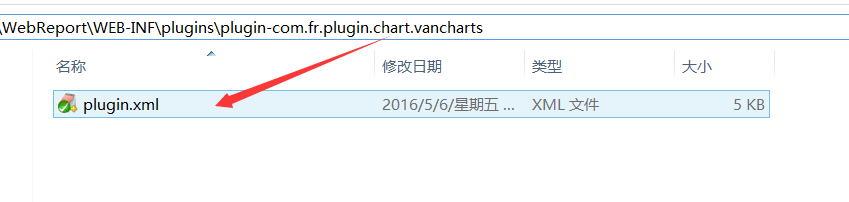
Open the Env path used by the current designer and verify that the following file exists and is correct:
WebReport/WEB-INF/plugins/{yourplugin}/plugin.xml
Note: If you have manually edited plugin.xml, ensure it is saved in UTF-8 (without BOM) encoding. On Windows, Notepad saves files as UTF-8+BOM by default — use a tool like EditPlus to save it as plain UTF-8.
3. Check the Designer Startup Log
Review the designer's startup log. If plugin.xml is loaded but contains errors, related class error messages will appear in the log.
Log files are located in the logs/ directory under the designer's working directory. See Logging Tips for details.
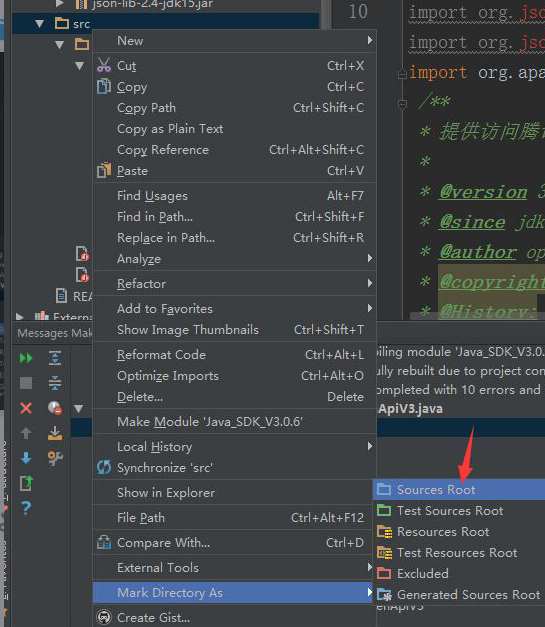
4. Mark the Plugin src Directory as Sources Root
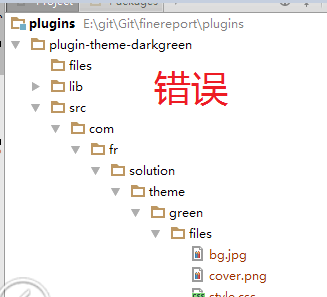
If the plugin's src directory is not marked as Sources Root, compilation will not work correctly.
Problem state:
Fix: Right-click the src directory → Mark Directory as → Sources Root