Essential Tools Installation and Configuration
Note: After configuring environment variables, you must restart the command prompt for the changes to take effect.
Since June 2020, plugin development projects and builds have switched to the modern build tool Gradle. Refer to the subsequent documentation for details.
Install JDK
Since January 2019, Oracle JDK has become a paid product. It is recommended to use Oracle JDK 1.8.0_201 or earlier, or switch to Amazon Corretto JDK.
Download and install the version matching your operating system. After installation, run the following in a terminal:
java -version
If the output looks like the following, the installation was successful:
java version "1.8.0_181"
Java(TM) SE Runtime Environment (build 1.8.0_181-b13)
Java HotSpot(TM) 64-Bit Server VM (build 25.181-b13, mixed mode)
Install Gradle
Gradle is used to manage plugin project configuration, dependency downloads, and build packaging. Version 6.4 is recommended.
Download (choose one):
- Provided by FanRuan (recommended): gradle-6.4-bin.zip
- Official: https://services.gradle.org/distributions
After downloading, extract the archive and add the bin directory to the system PATH environment variable. Then run:
gradle -v
If the output looks like the following, the installation was successful:
------------------------------------------------------------
Gradle 6.4
------------------------------------------------------------

Build time:   ...
Revision:     ...

Kotlin:       ...
Groovy:       ...
Ant:          ...
JVM:          1.8.0_181 (Oracle Corporation 25.181-b13)
OS:           ...
Install Git
Git is used to manage plugin project source code and to download plugin development samples (optional but strongly recommended).
Download (choose one):
- Provided by FanRuan: Git-2.27.0-64-bit.exe (Windows)
- Official: https://git-scm.com/
After installation, run:
git --version
If the output looks like the following, the installation was successful:
git version 2.27.0.windows.1
Note: Git is not strictly required, but it is strongly recommended for downloading plugin samples. You can also use the built-in Git tool in IntelliJ IDEA as an alternative.
Install IntelliJ IDEA
IntelliJ IDEA is the recommended IDE for plugin development. The Community Edition is sufficient.
Download (choose one):
- Official: https://www.jetbrains.com/idea/download
- Provided by FanRuan:
- Windows: ideaIC-2020.2.exe
- Mac: ideaIC-2020.2.dmg
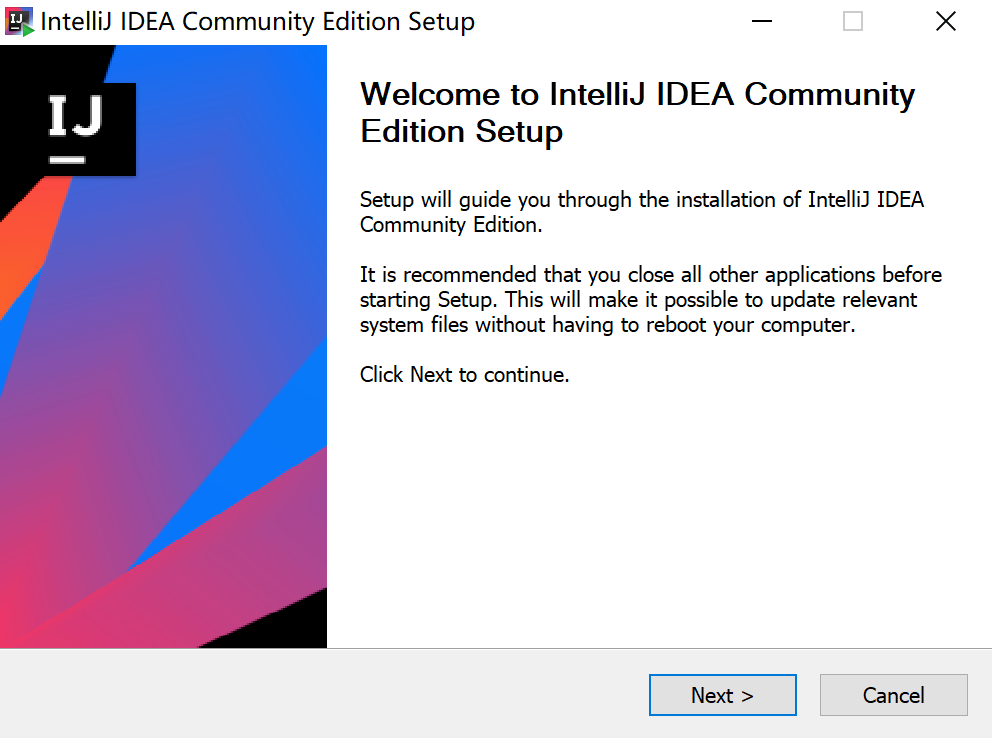
Follow the installation wizard to complete the setup: